Export
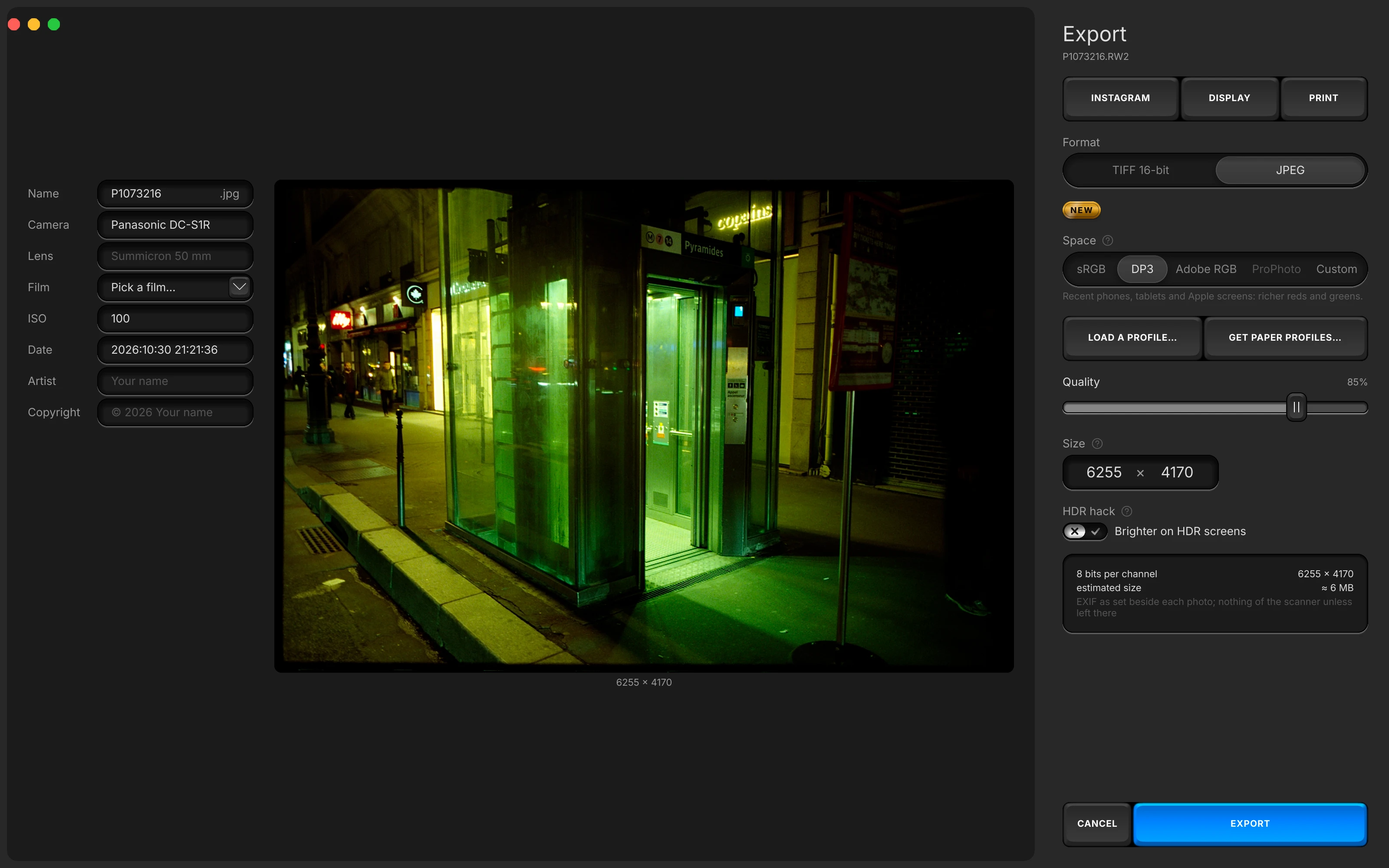
Export in Open Negative Initiative: your photos written as files, as you see them. A screen of its own, entered by the EXPORT key: three presets, format, space or a paper's profile, size, the HDR hack, and each photo's EXIF line.
Presets
Export is a screen of its own: the photos about to be written on the left, their settings on the right. Three keys at the top fill every field at once.
Export presets
Three keys head the export screen, Instagram, Display and Print. Each writes every field below at once and locks none: change a field afterwards and the export follows the field.
- No key stays lit: the fields are what will be written, and a key pressed is only a starting point.
- None of them turns the HDR hack on.
- Check the estimated weight under the fields before writing a whole roll as 16-bit TIFFs.
- JPEG, sRGB, quality 92%, 1440 px on the short edge
- Display
- JPEG, Display P3, quality 100%, full resolution
- TIFF 16-bit, Adobe RGB, ZIP compression, full resolution
Fields
Each field is what the files will be. Export As when several photos are selected, then format, space, the field the format decides, size, and the HDR hack.
Everything, or everywhere. TIFF 16-bit keeps every tone of the conversion; a JPEG is read by every app.
The space you edit in. Display P3 at first; ProPhoto writes a 16-bit TIFF, and Custom a paper's profile.
- 85%
The one lossy choice. Quality runs from 30% to 100% on a JPEG; a double click returns 85%.
The app's own note on Fields
The picture is edited in this space and exported in it. Each keeps the name a lab or a printer will ask for. Custom converts into an installed ICC profile, relative colorimetric with black point compensation.
Export As
With several photos selected, the first field asks how to write them: Separate Photos, one file each, or Contact Sheet, all of them on one sheet in a single file.
In the app, the beside Export As says:
Writes one file, the sheet the editor shows the photos on together: five to a row above the logo, numbered by their place on their roll, in orange on black, or in dark red on white when all are positives.
- The bar's EXP. CONTACT SHEET key, beside EXPORT when several photos are picked, opens the screen on Contact Sheet.
- A sheet asks for its file name, and its Size is the size of the whole sheet.
Format
TIFF 16-bit keeps every tone the conversion made, with no banding in the shadows; JPEG is 8 bits and lossy, and read everywhere. The format decides the field under the space: Compression for a TIFF, Quality for a JPEG.
- The export opens on JPEG the first time, then on the settings you last used.
- ProPhoto and JPEG never go together: choosing JPEG on ProPhoto moves the space to Adobe RGB.
Space
The space your photo is edited in and written in: sRGB for the web and social networks, DP3 (Display P3) for recent phones, tablets and Apple screens, Adobe RGB for print labs, ProPhoto for printing at home through the printer's own profile, or Custom for a paper's profile.
- ProPhoto is TIFF 16-bit only: in eight bits so wide a space bands, so choosing it switches the export to TIFF.
- Display P3 is where the app starts. Changed here or from the chip above the photo, it is the same setting.
- Every preview of the export screen renders through it, so you can compare spaces on your own pictures.
Custom: a paper's profile
Custom converts into an installed printer or paper ICC profile, relative colorimetric with black point compensation. Load a Profile… installs one from a file; Get Paper Profiles… finds your paper's.
- Load a Profile… takes .icc or .icm files, or the zip a paper maker or a lab ships them in. Only RGB printer profiles install.
- Get Paper Profiles… lists paper makers: some profiles install in one click, the others are a link to the maker's page.
- Your photo is then shown on that paper as the print will look, and the Color tab offers Paper Correction.
- From the chip above the photo, Show only color variation (not recommended) shows the paper's white as white and its black as the screen's. Off, as it rests, the canvas shows the print.
Compression
ZIP, lossless, on a TIFF: a smaller file and not one value lost. It is on at first, and each of the three presets turns it back on.
- LZW is left out on purpose: it makes grainy 16-bit scans larger instead of smaller.
Quality
The one lossy choice of the export, on a JPEG: from 30%, where blocks show, to 100%. A double click on Quality returns 85%; Instagram writes 92%, Display 100%.
- Quality
- 30% to 100%, at rest 85%
Size
Width and height show the first photo's size after its crop and turns. Type one, and that edge is the ceiling every photo of the batch rides; an export never enlarges, and empty means full resolution.
In the app, the beside Size says:
Pixels of the first photo. The edge you type is the one the ceiling rides on every photo of the batch — the width of a landscape is its long edge. Never enlarged; empty means full resolution.
- For a batch of landscapes and portraits that should match, type the short edge.
- Once an edge is typed, the key beside the fields, Full resolution, brings back the full size.
HDR hack
Brighter on HDR screens, on a JPEG: the file gets a flat gain map, so an HDR screen shows your picture up to two stops above the page's white. No pixel changes, and every other reader sees exactly the same picture.
In the app, the beside HDR hack says:
Writes a gain map so HDR screens show the picture up to two stops above the page's white; everyone else sees exactly this picture. Post it uncropped, from a desktop browser at original ratio. JPEG only: no TIFF reader honours a gain map.
- Off at first, greyed on a TIFF, and none of the three presets turns it on.
Per-photo fields
Beside each preview, the photo's own line: its file name and its EXIF.
EXIF fields
Beside each preview, the photo's own line: Name, then Camera, Lens, Film, ISO, Date, Artist and Copyright. It opens on the scan's own EXIF, so you see whose facts these are and replace them; nothing else of the scanner is written.
- A roll's Camera Body and Film Stock fill Camera and Film for its frames.
- Film is picked from the catalogue, never typed: Pick a film… opens it.
- Artist and Copyright open on what you last wrote; a line you typed is kept for the photo's next export.
- Name is the file's name, its extension added by the format.
Writing
What the file will be, and the two keys that leave the screen. Once the export runs, a card over the photo counts the files.
- CANCEL
Leave without writing. Cancel, or Esc, goes back where you came from; an export under way goes on.
- EXPORT 12 PHOTOS
The key counts the files. EXPORT on one photo, EXPORT 12 PHOTOS on a selection; ⌘E presses it.
Summary
Under the fields, what the file will be: 16 or 8 bits per channel, its size in pixels, and its estimated size, or the batch's estimated total. An 8-bit source is flagged: its shadows may band once inverted.
- The weight is read on a 500 px sample of the first photo, multiplied by the count.
- A last line recalls that the EXIF is the one set beside each photo, nothing of the scanner unless left there.
Cancel and EXPORT
Cancel leaves the screen and writes nothing; the export key writes. It counts what it is about to write: EXPORT, EXPORT 12 PHOTOS, or EXPORT CONTACT SHEET. One file asks for its name; a batch asks for a folder, and each file takes the name beside its preview.
- Esc is Cancel; ⌘E presses the export key on this screen.
- A file already there asks first: Replace for an earlier export of the app, Rename for anything else. Your originals are never touched.
- While the files are written, a card over the photo counts them, and you can go on editing. Its Stop key stops after the photo being written.
The rest of the manual.
Every surface of the app, in the order of your work. From the folder of scans to the exported file.
- ArchiveOpening the folder of your scans, your folders and favourites, the Archive and Projects tabs, a roll's own facts, the Rolls and Labels menus, and the ONI Trash.
- Prepare the RollThe five steps a roll goes through before its frames are edited: film, flat-field, film base, flags, measuring frame, then Measure.
- RollWhat a roll shares: film type, flat-field, source encoding, the manual balance, the levels, dye separation and Balance strength.
- CropThe framing's own Copy and Paste, aspect ratio, straightening, quarter turns and mirrors, and the measuring window.
- ColorAuto White Balance, Temperature and Tint, Lighting, Effects, Curves, the finishing blocks, and Paper Correction on a paper profile.
- DetailsSharpening, chroma denoise and texture, the stages that act on the grain, judged in the loupe at full resolution.
- De-dustThe brush for dust and scratches, its size, and the list of corrections painted on the open photo.
- ScannerThe Scanner face: ONI or Frontier, a lab scanner's keypad of D, C, M, Y and TEMP, and the finish laid after its render.
- PresetsThe deck, saving a preset, its eighteen switches and white balance choice, the Settings menu, and Copy and Paste.
- Toolbar and menusEvery key of the bar and of the canvas margin, and every menu item with its shortcut.
- The whole manualEvery surface on one page, in the order a roll goes through the app.
- The guideYour first negative converted, step by step.
Convert your first roll tonight.
Add your folder, prepare the roll once, export. Free, and nothing else to install.
- Mac
- macOS 13 or later on Apple Silicon or Intel
- Windows
- Windows 10 or 11 (64-bit)
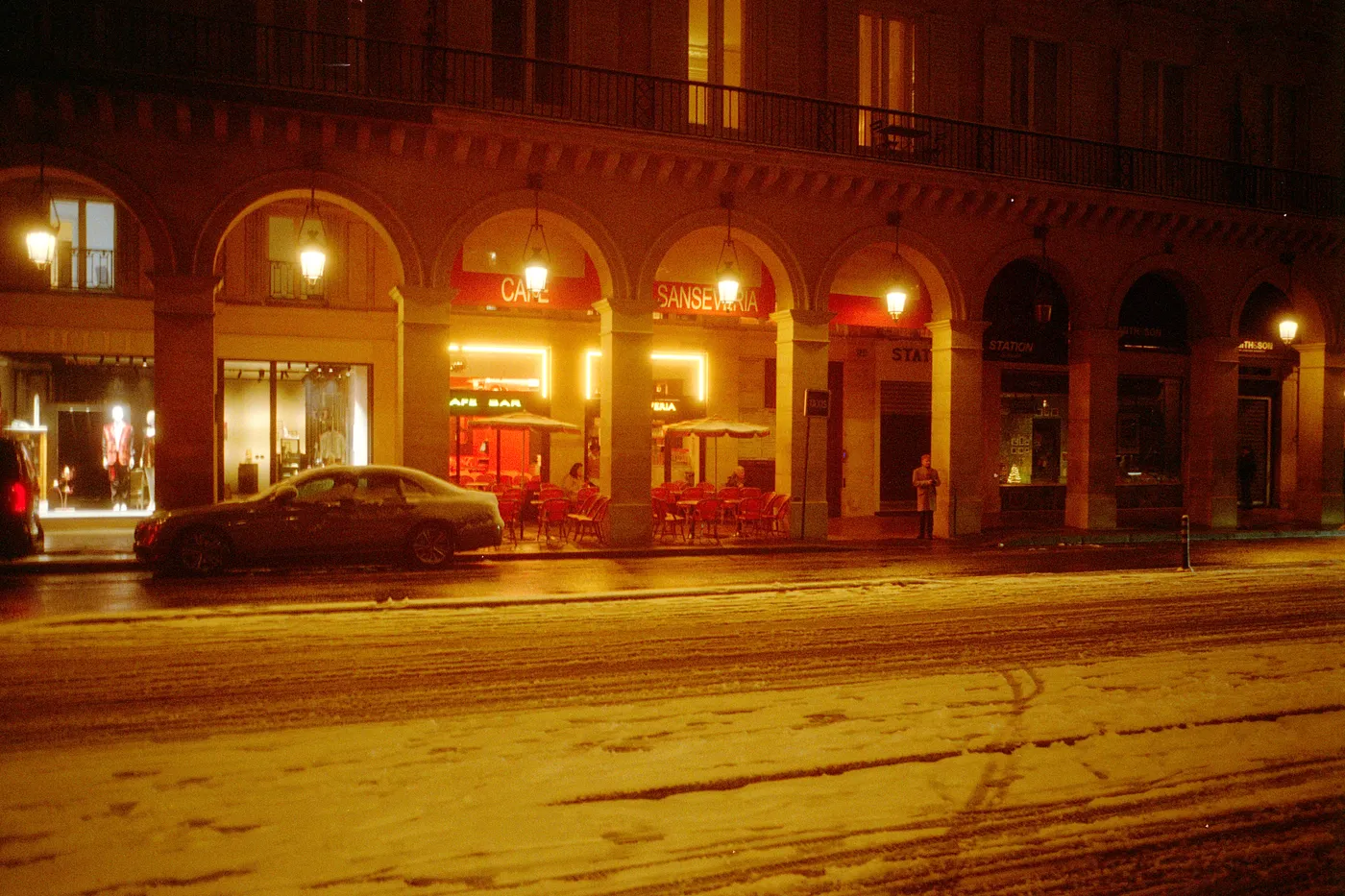
Snow night. Kodak Gold, converted in Open Negative Initiative.